
Exporting data from Hoolan
We offer three ways to export your data from Hoolan:
1. Direct export to Strava from within the app
2. Download your GPX files
3. Apple Health Export
1. Export to Strava
Connect your Hoolan and Strava accounts then export your Hoolan sessions directly to Strava.
Step 1 - Connect your accounts on the Hoolan phone app:
Profile > Settings > Account > Integrations > Strava
Follow the instructions to link your accounts.

Step 2 - Export your sessions:
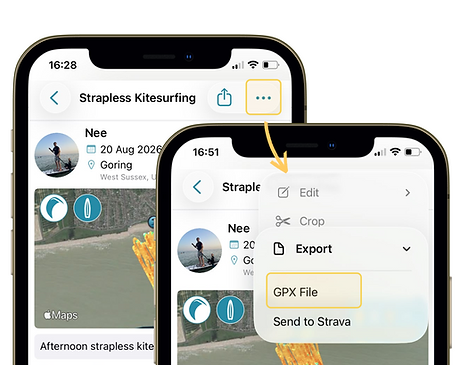
Select the session you'd like to export. From the session details screen, tap the '...' menu in the top right.
Select Export > Send to Strava

2. Download your GPX files
Select the session you'd like to export. From the session details screen, tap the '...' menu in the top right.
Select Export > GPX file
Select your preferred way to transfer/ save your GPX file.
3. Export to Apple Health
We've enabled the watch app to write GPS and heart rate data to Apple Health while you are recording.
In order to make this happen, you need to have given Hoolan permission to write both your 'Workout Routes' AND 'Workouts' to Apple Health.
These permissions are requested when you first download and open up the Hoolan Watch App. To double check you have the right permissions set on your phone, navigate to Settings > Health > Data Access & Devices > Hoolan and toggle write to 'Workout Routes' on.
Write Permissions Screen on your Apple Watch:

Amending your Health Permissions on your iPhone:
Settings > Health > Data Access & Devices > Hoolan
