
Connect with friends on Hoolan
You can connect with your friends on Hoolan, follow their sessions, and view their profiles.
You can do this in two ways:
-
Send a follow request link from either the Connections section of the app or your Profile; or
-
Scan each other's QR codes in person
.webp)
1. Send a follow request link
You can send a follow request link to your friends, whether or not they have a Hoolan account.
To do this:
-
Open the Hoolan app
-
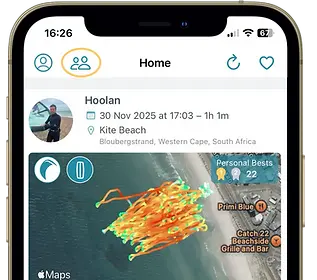
Go to Connections
-
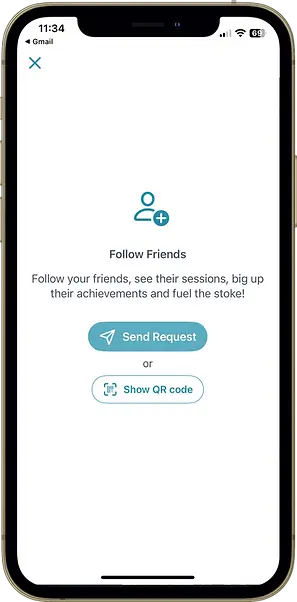
If it's your first follow request, you can tap 'Send Request' directly from this screen.
-
If you already have connections, go to the top right of the screen and tap:
-
Tap Send Request
or
-
Go to your Profile
-
Tap
A message containing your follow request link will be created. You can send it via WhatsApp, email, text, your social apps or any other messaging app.
If your friend already has Hoolan installed:
Tapping the link will open your follow request directly in the app for them to accept.
If your friend doesn't yet have Hoolan:
The link will guide them through setting up an account. Once set up, they can use your link to accept your follow request.
What happens when your request is accepted?
Once your request is accepted, you will be able to:
-
See you friend's sessions in your feed
-
View their profile, connections and past sessions
-
Access their session stats and analysis (excluding health data, which is always private)
You will also appear as a follower on their profile.
Privacy note:
Friends of your friend (who you are not directly connected with) will only see your:
-
First name
-
Last name
-
Username
They will not see your image or access your profile unless:
-
Your profile is public (see privacy settings), or
-
You have a direct follow/ following connection with them.
2. Connect in person using a QR code
If you don’t have a friend’s contact details, you can connect by scanning each other's QR codes.
To find your QR code:
-
Open the Hoolan app
-
Go to Connections
-
Tap the Add friend icon
-
Tap the Show QR button
This works best if both people already have a Hoolan account. If not, your friend will need to download the Hoolan app first before scanning.

Following back
Accepting a follow request, does not automatically create a two way connection.
If your profile is set to Followers, the other person will not be able to see your sessions or profile unless they also send you a follow request and you accept it.
If your profile is set to Public, other users can view your profile and sessions without sending a follow request. They can also choose to follow you directly from your profile.
Privacy settings
You are in control of your privacy on Hoolan. You can choose who can see your profile and who can view your sessions at any time.
By default, your data is private. If you prefer to keep your activity completely private, simply don’t send or accept any follow requests - no additional settings are required.
Notifications
You are able to set notifications to alert you when:
-
Your session has uploaded to your session feed
-
Someone you're following has uploaded a new session
-
Someone starts following you
-
When your follow request has been accepted
Notifications are defaulted 'off'.
You can amend your notification settings at any time.
Go to:
Profile > Settings > Preferences > Push Notifications